 PomoBreath
01 · Choose a direction and begin
PomoBreath is a menu bar app for macOS 15.0 and later. After launching it, click its icon or timer at the top of your screen.
- Choose a focus area, such as coding, writing, or learning.
- Start a countdown or a count-up session. A countdown ends at its target; you end a count-up session yourself.
- Pause and resume when needed. Your timer stays in the menu bar, and you can also open a separate focus window.
Paused time is excluded from actual focus duration. Canceling an active session deletes that unfinished record without creating a history entry or reflection.
02 · Capture progress and leave a next step
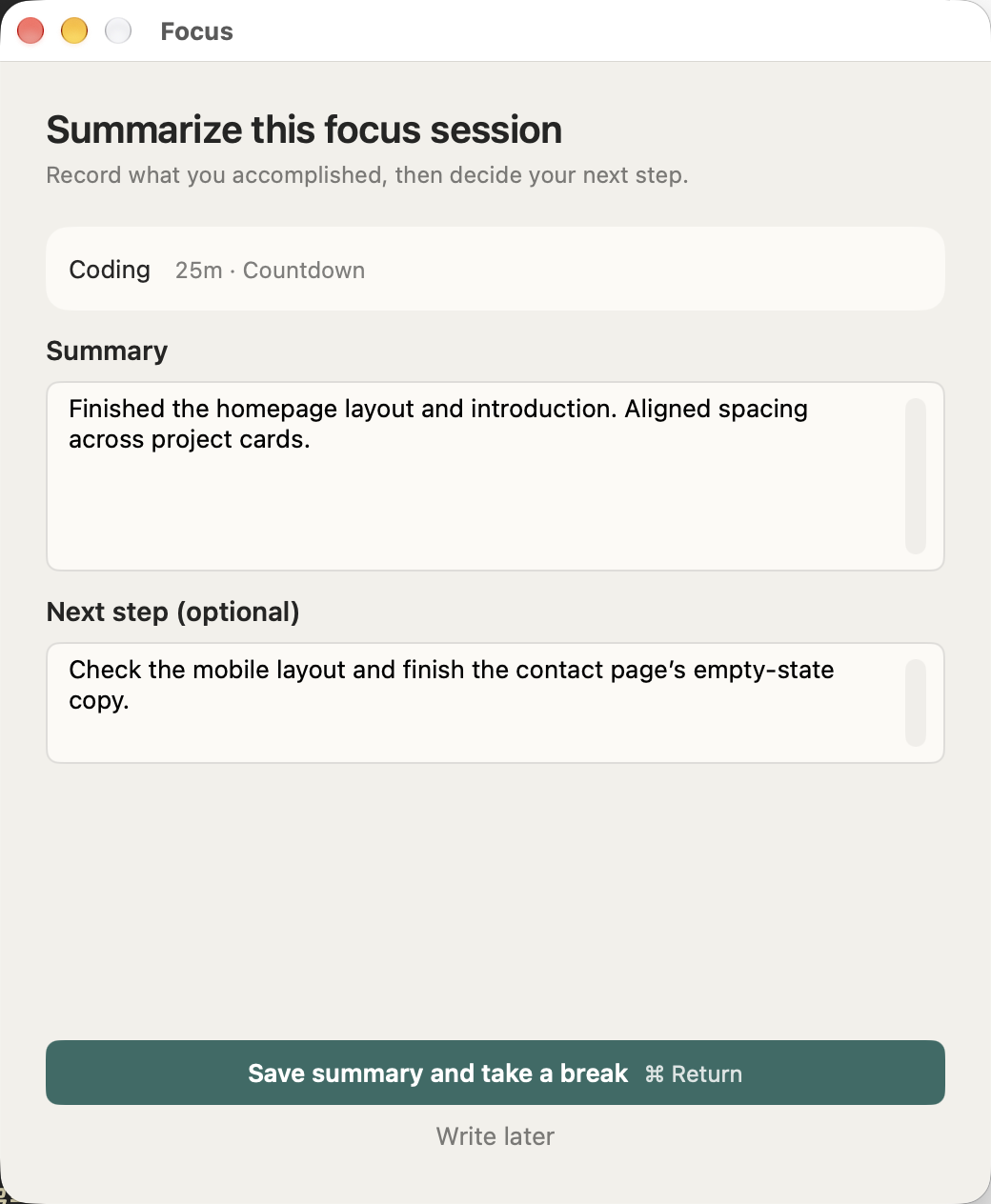
When a session ends, its record is saved with a pending reflection. Write what you actually completed, then submit it. The next-step field is optional.
You can defer the reflection and take a break first. The record remains pending and must be completed before starting another focus session. Closing the window or restarting the app does not turn it into a completed record.
03 · Rest, then choose what comes next
A break begins after you submit or defer your reflection. Wait for it to end or skip it, then review your previous context and choose your next focus area. A break never starts another focus session automatically.
Built-in break effects are free. Custom break animations require Pro. Enable effects in settings if they suit your routine.
04 · Add work you didn't time
Open the manual-entry option from the menu bar. Enter the time, focus area, and reflection for work you completed without the timer. A next step remains optional.
05 · Find records and export your data
Open the data window from the menu bar, then choose Focus Records. Filter by keyword, dates, and focus area. Open a record to read or edit its reflection, or complete a pending one.
CSV export includes all results in the current filter, not just the visible page. Agent records have a separate export; focus CSV files do not include original Agent responses. CSV is a readable data output, not a complete backup that can be restored into the app.
Deleting a focus record does not remove copies already written to other tools. Its Agent reports are retained and unlinked. See the retention and deletion policy.
06 · Look back and find your rhythm
The free Overview covers the current week, month, year, or custom dates, with duration, counts, trends, and focus-area breakdowns. Ended sessions with pending reflections count toward statistics. Active and canceled sessions do not.
The Pro Focus Calendar shows a full-day timeline for each day of a week. Blocks span start to end and may include pauses; the record text shows actual focus duration. The calendar and overview keep their own date ranges.
07 · Connect completed records to your tools Pro
Configure destinations in Settings → Sync. They are independent; you do not need to enable all of them. Reflections are saved locally first, and a sync failure does not undo a local save.
Obsidian
Authorize your Daily Notes directory and set the filename pattern and template. The note for the relevant date must already exist; PomoBreath does not create the daily note for you. Sessions that cross midnight use their end date.
Notion
Provide a parent-page link and a Notion credential with access to that page, then verify the setup. The first successful verification creates a dedicated database and syncs completed local history, so check the destination before proceeding. Credentials are stored in the macOS Keychain.
SQLite
Authorize a directory and create the dedicated sync database. The initial sync includes completed local history. This does not write into an arbitrary existing database. Keep the generated database file in place.
These integrations write records to a destination; they are not two-way sync. Existing Notion and SQLite content is not automatically updated by local edits or deletions. Rebuilding creates a new destination from the completed records available at that time. If sync fails, inspect the destination status before repairing or retrying it.
08 · Use Agent work as reflection material Pro
- Open Settings → Agent and enable local reception.
- Choose your tool, authorize its configuration directory, and run configuration. Cursor also requires access to the relevant project directory.
- Let the main Agent complete a real task, then check the latest callback or diagnostic status.
- Select a received record in your reflection, insert its text, and edit and confirm it yourself.
Supported tools are Codex, Claude Code, ZCode, Gemini CLI, and Cursor. PomoBreath receives the main session's final response, not an automatic import of the entire conversation. The Agent Records page lets you search reports still stored on your Mac.
A successful configuration diagnostic does not necessarily confirm a real Agent callback. If nothing arrives, check the tool's hooks, reception switch, configuration directory, and Pro status. Disabling reception does not delete saved records.
09 · Free and Pro
Timers, reflections, manual entries, history, overview, and export are free. The focus calendar, Agent capture, custom break animations, and automatic sync require Pro.
Annual and Lifetime currently provide the same Pro software access. Lifetime covers Pro features available at purchase and future features explicitly included in the Lifetime entitlement. Independently charged services are separate. See the purchase screen for pricing and trial eligibility. If you have already purchased, use Restore Purchases on the PomoBreath Pro page. Apple manages subscriptions. Read the purchase FAQ and terms of use.
Still unsure about something?
Browse the FAQ or contact support.